
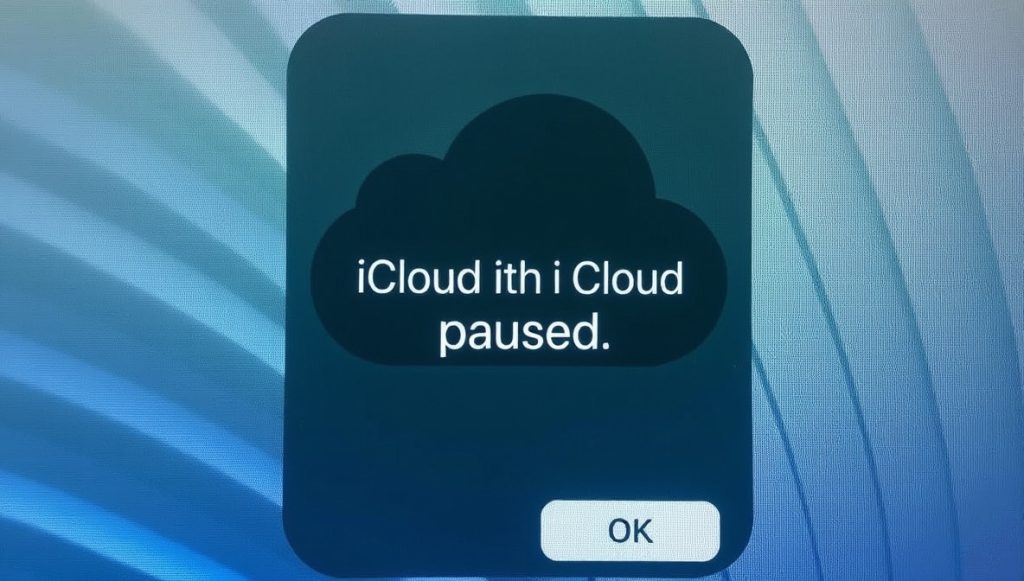
Have you ever seen the message “syncing with iCloud paused” on your iPhone, iPad, or Mac and wondered what it means? The syncing with iCloud paused meaning is quite simple — it means your device has stopped uploading or downloading data from iCloud for some reason. This can happen due to a weak internet connection, low battery, or limited storage space. When syncing stops, your photos, files, and other data may not be updated across devices. Many users get confused or worry something is wrong with their iCloud, but it’s often an easy fix once you know what’s happening behind the message.
Understanding the syncing with iCloud paused meaning helps you know why your data stops moving and how to make it work again. Sometimes, your device just needs Wi-Fi, more battery, or a quick restart. In other cases, you might have to check your iCloud settings or Apple ID. Once you learn these simple steps, you can quickly get your files, photos, and messages back in sync. iCloud is designed to keep your Apple world connected, so when syncing pauses, your goal is just to find what’s blocking it. In this guide, we’ll explain what causes it, how to fix it, and how to prevent it in the future — all in easy steps anyone can follow.
What Does Syncing with iCloud Paused Meaning Really Mean?
When you see the message “syncing with iCloud paused,” it means your device has stopped sending or getting data from iCloud for a while. This can happen when your iPhone, iPad, or Mac needs something before it can continue syncing, like Wi-Fi, battery power, or storage space. iCloud is like a helper that keeps all your photos, files, and notes safe online. When syncing is paused, it’s just waiting for the right time or condition to start again. It doesn’t mean your data is lost. Once you fix what’s missing, iCloud will start working again and keep everything updated across your Apple devices automatically.
Common Reasons Why Syncing with iCloud Gets Paused
There are a few common reasons why syncing with iCloud gets paused. One big reason is a weak or missing internet connection. Without Wi-Fi, iCloud can’t upload or download your data. Low battery or power-saving mode can also stop syncing to save energy. Another reason could be not enough iCloud storage left for your new photos or backups. Sometimes, Apple servers are busy or down, which can also pause syncing. Even turning off iCloud accidentally in settings can stop it. Knowing these reasons helps you find out what’s wrong and fix it fast. Most of the time, it’s something simple you can do yourself, like plugging in your charger or turning Wi-Fi back on.
How to Fix Syncing with iCloud Paused on iPhone and iPad
Fixing syncing with iCloud paused on your iPhone or iPad is easy. First, make sure your device is connected to a strong Wi-Fi network. Next, check if your battery is low — if yes, plug it in to charge. Then, go to Settings > [Your Name] > iCloud and make sure the services like Photos, Drive, or Messages are turned on. You can also restart your device, which often helps fix small syncing bugs. If iCloud storage is full, delete some old backups or files you don’t need. Finally, check if your Apple ID is working correctly and sign in again if needed. These simple steps usually get your iCloud syncing working again in no time.
Easy Steps to Resume iCloud Syncing on Mac
If syncing with iCloud paused on your Mac, don’t worry — it’s easy to fix. Start by checking your internet connection, because iCloud needs a stable link to work. Next, open System Settings > Apple ID > iCloud and make sure iCloud Drive and other options are turned on. Restart your Mac if syncing doesn’t start again right away. Also, check your iCloud storage to make sure it’s not full. Sometimes, logging out and signing back in to your Apple ID helps refresh the connection. Keep your macOS updated, as old versions may cause small syncing issues. Once you do these steps, iCloud will start syncing again, and all your files, notes, and photos will update smoothly across devices.
Checking Your Internet and Battery When Syncing Pauses
Internet and battery are two main things iCloud needs to sync your data. If your internet is weak, iCloud can’t send or receive anything. Make sure Wi-Fi is turned on and the signal is strong. You can also try turning Airplane Mode on and off to refresh the connection. Low battery can also pause syncing because your device tries to save energy. Plug your phone or laptop in and wait a few minutes. Once it has enough power, syncing usually starts again automatically. It’s a simple trick, but it often fixes the problem quickly. Always keep your device charged and connected to Wi-Fi to avoid syncing pauses in the future.
How iCloud Storage Problems Can Stop Syncing
When your iCloud storage is full, syncing stops because there’s no more space to save new data. It’s like a box that’s already filled up. You can check your storage by going to Settings > iCloud > Manage Storage. If it’s full, delete things you don’t need, like old backups, photos, or files. You can also buy more space from Apple if you need it. Cleaning your storage helps iCloud work faster and keeps syncing smooth. When there’s enough space again, your iCloud will start syncing automatically. Always check storage once in a while so your data can keep moving without getting paused again.
What to Do If Syncing with iCloud Paused Keeps Coming Back
If syncing with iCloud paused keeps coming back again and again, it means something deeper is wrong. Start by checking for software updates — sometimes, old versions have bugs that stop syncing. Make sure your Apple ID is signed in correctly on all devices. You can also reset your network settings to fix Wi-Fi problems. If your storage keeps filling up, try turning off automatic backups for apps you don’t use. Sometimes, even signing out and back into iCloud can refresh things. If nothing works, contact Apple Support for help. They can check if the problem is from your device or Apple’s servers.
Conclusion
When you understand the syncing with iCloud paused meaning, it’s easy to fix. Most of the time, the issue is small — like no Wi-Fi, low battery, or full storage. Once you fix that, iCloud starts working again and keeps your files and photos safe. You don’t need to worry, just follow simple steps and you’ll be fine.
Remember, iCloud helps keep all your Apple devices connected. If syncing pauses, it’s just asking for your attention. Keep your device charged, internet strong, and iCloud storage clean. Doing this helps you stay worry-free and keeps your Apple world running smoothly.
FAQs
Q: What does “syncing with iCloud paused” mean?
A: It means your device has stopped updating data with iCloud for now, often due to Wi-Fi, battery, or storage issues.
Q: How can I restart syncing on my iPhone?
A: Connect to Wi-Fi, charge your phone, and check that iCloud is turned on in Settings.
Q: Does syncing paused mean my data is lost?
A: No, your data is safe. iCloud just stops syncing until the problem is fixed.